LedArt · Control from your phone or tablet

Manage your screens with ease.

LedArt is the control app used with compatible Yovisual LED and LCD screens. It lets you create programmes, add videos, images, text or clocks, organise content by area and send it directly to the controller from a mobile device.

Wi‑Fi or LAN connection Scheduling by date and time Device control
Content ready Video · Image · Text · Time
LedArt app logo for advertising screens
LedArt Main screen
ONLINE
Preview Your campaign on screen
▶Video
▧Image
TText
◷Time
Schedule active Monday–Sunday · 08:00–22:00
Wi‑Fi / LAN Connect your phone to the compatible controller.
Multimedia Video, image, text, clock and layout by area.
Scheduling Dates, times, days and playback duration.
Control Power, pause, volume, brightness and programme switching.
What LedArt is

Your screen and your content, in one app.

LedArt lets you control LED and LCD screens from a mobile phone or tablet, so you don't need a computer for everyday editing, scheduling and content sending.

Once the device is connected to the controller, you can create a programme, set the screen resolution, add multimedia content, arrange the playback areas and publish the result directly to the screen.

Create Programmes and layouts
Schedule Dates, times and days
Send Content to the controller
Main features

What matters, organised so you can work fast.

Rather than an endless technical list, LedArt brings everyday tasks together in a simple flow: create, compose, schedule, send and control.

Videos and images

Add one or more files, adjust their playback area and set duration, animations and entry mode.

Multimedia content

Text and clock

Create text areas and change the font, size, colour, background and duration. You can also add the time with display options.

Dynamic information

Layers and zones

Split the screen into different areas and overlay video, images, text or a clock to create richer layouts.

Section-based design

Scheduled campaigns

Set the broadcast date, time, days of the week and duration to automate campaigns and avoid out-of-date content.

Automation

Device lock

Protect uploads with a password to prevent unauthorised changes in shared or public installations.

Operational security

Parameters and settings

Manage time, resolution, screen parameters, firmware and other technical settings when the controller requires it.

Technical settings
Quick guide

From your phone to the screen in 4 steps.

Yovisual's professional manual sets out how to use LedArt in a very clear flow: prepare, install, connect and publish.

01
Preparation

Check the controller

Check the screen type, the compatible controller and the connection method available before creating content.

02
Installation

Install LedArt

Download the app using the QR code or the compatible app store and complete the installation on your phone or tablet.

03
Connection

Find the screen

Connect via the controller's Wi‑Fi access point or work within the same local LAN network.

04
Publishing

Create and send

Add video, images, text or the time, schedule the broadcast and send one or more programmes to the controller.

Weekly schedule ACTIVE
Monday
08–22 h
Tuesday
09–21 h
Wednesday
08–22 h
Thursday
09–21 h
Friday
08–22 h
Automatic scheduling

Publish each piece of content at the right time.

LedArt lets you set dates, times, days of the week and playback duration. This is especially useful when a screen shows different campaigns depending on the time of day or season.

  • Activate promotions only during campaign dates.
  • Separate morning, afternoon or weekend content.
  • Stop promotions that have already ended from staying on screen.
  • You can also send several programmes from the content list.
Phone / tablet LedArt installed
Screen Compatible controller
Connection to the unit

Direct over Wi‑Fi or within your local network.

The app can connect directly to the controller's Wi‑Fi access point or find the device when it is integrated into the same LAN.

Mode 1 · Direct Wi‑Fi Enable the controller's access point and connect your phone to that network.
Mode 2 · LAN If the controller is connected to the network, LedArt can find it on the LAN.
Device control

You don't just publish content. You control the screen too.

From LedArt's remote module you can carry out everyday operations without going to the unit's physical menu.

Remote control Device connected
⏻ Power Turn playback on or off.
▶ Programme Switch, play or pause content.
♪ Volume Adjust the sound level.
☀ Brightness Change the unit's brightness.
Time synchronisation

LedArt can also correct the time automatically, use the phone's time or let you set it manually.

What you can publish

One layout, several types of content.

LedArt lets you work with different elements and combine them on the same screen to create designs that are far more useful than simple linear playback.

▶ Video One or more videos with loop playback and a configurable area.
▧ Images Configurable duration, entry and animation effects.
T Text Font, size, colour, background, animation and duration.
◷ Time Configurable clock with seconds, font colour and outline.
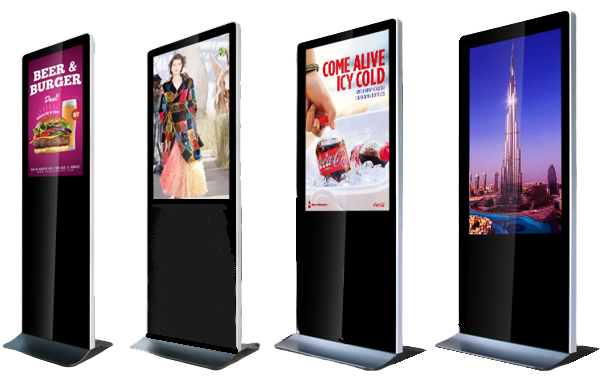
Yovisual screens and totems compatible with content management systems
Yovisual screens Compatibility depends on the controller and configuration installed.
Compatibility

LED and LCD with a compatible controller.

The professional LedArt manual covers LED controllers from various series and compatible LCD controllers. Before setting up the app, it is advisable to check the installed controller and the connection method available.

  • Compatible LED controllers depending on series and configuration.
  • Compatible LCD controllers.
  • Editing while connected to the unit, or manual resolution setting when working offline.
  • Import of screen parameters when the installation requires it.
LedArt and Led‑Cloud

Two different ways to manage content.

Yovisual offers different methods for loading content. LedArt is designed for app-based control connected to the controller; Led‑Cloud enables remote management over the internet.

This page

LedArt

An app for creating programmes, connecting to the controller, sending content and controlling device functions from a phone or tablet.

  • Direct Wi‑Fi or LAN
  • Content editing
  • Scheduled playback
  • Device control
Cloud alternative

Led‑Cloud

A cloud-based platform for managing screens over the internet from anywhere with a linked account.

  • Management over the internet
  • Control from a web dashboard
  • Multiple devices
  • Remote content
Download and documentation

Get started with LedArt and keep the manual to hand.

Scan the QR code to download the app and use Yovisual's professional manual as a guide to connecting, creating programmes, sending content, remote control and settings.

LedArt download QR code
LEDART APP

Scan the QR code with your phone

Availability and the installer may vary depending on the system and version used. If you have any questions about compatibility, contact Yovisual support.

Frequently asked questions

The essentials before you start.

A quick summary of the most common questions about connection, content, scheduling and control.

Do I need a computer to use LedArt?

Not for everyday tasks. Yovisual's manual describes LedArt as a solution for controlling LED and LCD screens from a mobile phone or tablet, including editing and sending content.

How does LedArt connect to the screen?

You can use a direct connection to the controller's Wi‑Fi access point, or a connection within the same LAN when the controller is integrated into the local network.

What content can I add?

The manual covers video, image, text and clock areas. The different areas can be resized, moved and overlaid to create layouts.

Can I schedule a campaign to show only on certain days or at certain times?

Yes. LedArt lets you set the programme's broadcast date, time, days of the week and playback duration.

Can I turn the screen on or off or adjust it from the app?

The remote control module allows actions such as turning on or off, switching programme, playing or pausing, adjusting volume and changing brightness, provided the installation and controller are compatible.

What should I do if I don't know which controller my screen has?

Before changing technical settings, it is advisable to identify the model and installed configuration. If it is a Yovisual screen, you can contact support to confirm compatibility and the correct procedure.

Yovisual support

Need help connecting LedArt to your screen?

Contact Yovisual →