Manage devices
View connected units, create groups, rename them, filter by device type, and check status, location and monitor information.



The LED‑Cloud platform lets you manage internet-connected Yovisual screens from a web interface: organise devices, upload content, create programmes, publish campaigns, view history and manage users from anywhere.
LED‑Cloud turns connected devices into a network you can manage from a personal account. The hardware plays the content and connects to the internet; the web platform acts as the control centre for organising, editing and publishing.
This architecture is especially useful when there are several screens, different sites or units located far from the person managing visual communication.
Check compatibilityThe dashboard separates management of devices, materials, programmes, tasks, statistics and settings so that each operation has its own space.
View connected units, create groups, rename them, filter by device type, and check status, location and monitor information.
Upload images, videos, music or documents before adding them to the programmes that will be published on your screens.
Create LCD programmes, edit, preview and rename them, publish immediately and check their status or playback history.
Check publications and events carried out by users and export logs when you need to review or audit activity.
View history by period to find out how many times a programme ran, what a display played and how long it stayed active.
Manage the account, sub-users, permissions and cloud storage capacity, and view access-related information.
LED‑Cloud lets you select units individually or group them to simplify publishing and administration, which is especially useful for chains, franchises, buildings with several zones or companies with multiple sites.
Getting started involves registering the account, linking the screen, uploading material, creating the programme and publishing it to the selected units.
Sign up to LED‑Cloud and validate the user with the verification code.
Set the compatible unit to network mode and enter the associated user.
Upload the images, videos, music or documents you are going to use to the cloud.
Select the screen, resolution and layout; then add and arrange the widgets.
Select one or more units and launch the programme from the web dashboard.
The platform lets you create programmes from scratch or edit an existing one. Content areas can be moved, resized and arranged within a virtual representation of the display.
Programmes can be published and managed with playback options, while the tasks module keeps a history of the actions carried out by users.
LED‑Cloud includes tools for sharing responsibilities, checking available capacity and analysing playback history.
Create sub-users and assign specific functions or permissions when different people manage zones, sites or groups of units.
ACCESS CONTROLYovisual's documentation states an initial capacity of 5 GB, expandable, for storing the materials and resources used in programmes.
5 GB BY DEFAULT PER THE MANUALView the number of runs, active time and activity of programmes or devices by period to review network usage.
HISTORY AND DURATIONSign-up is done from the web platform. The compatible unit must then be configured to work on the network and be linked to the same user.
These are the original screenshots Yovisual already uses on the LED‑Cloud page. We have kept them in the new design because they show the real interface during registration and system setup.
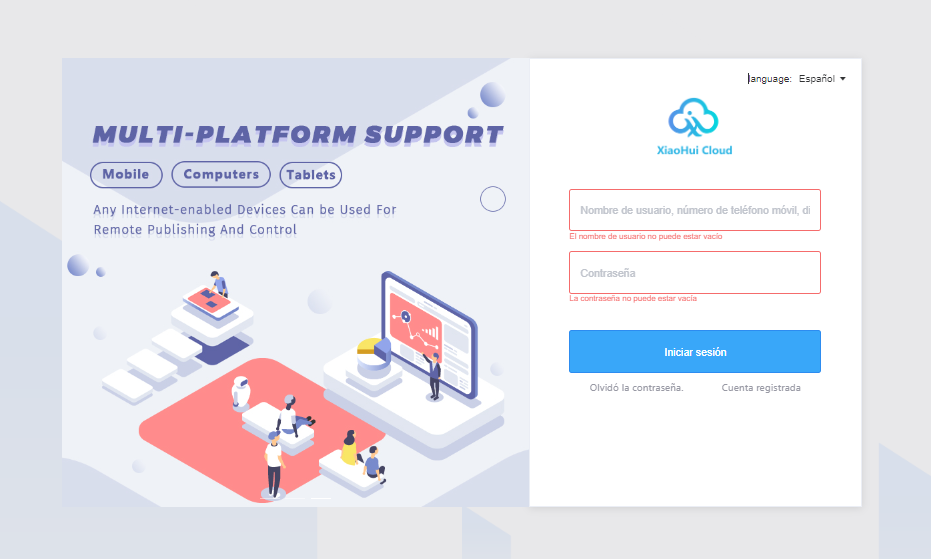
Visual reference of the interface used when logging in and taking your first steps on the platform.
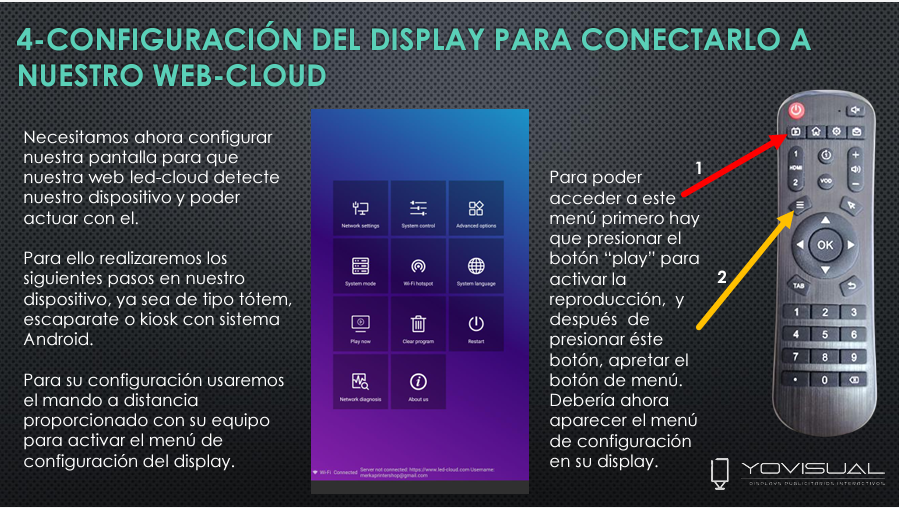
Original screenshot of the unit preparation process before working through the cloud platform.
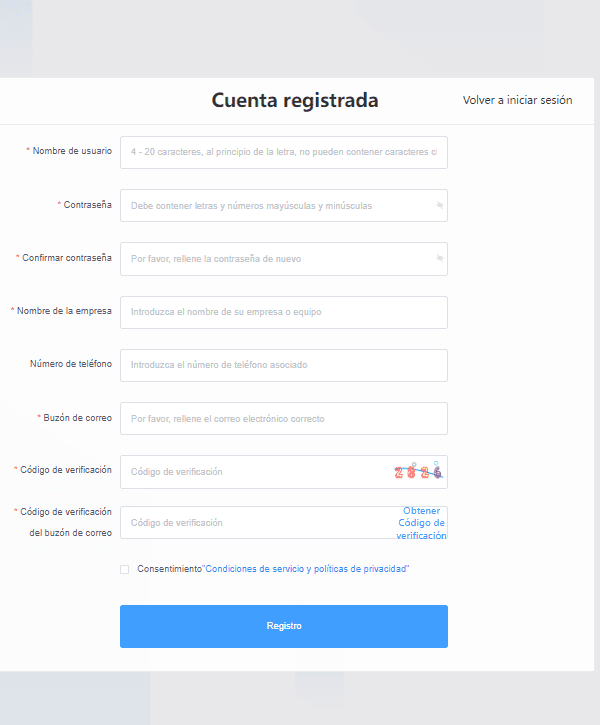
This screenshot helps you visually locate the settings related to the compatible device's network configuration.
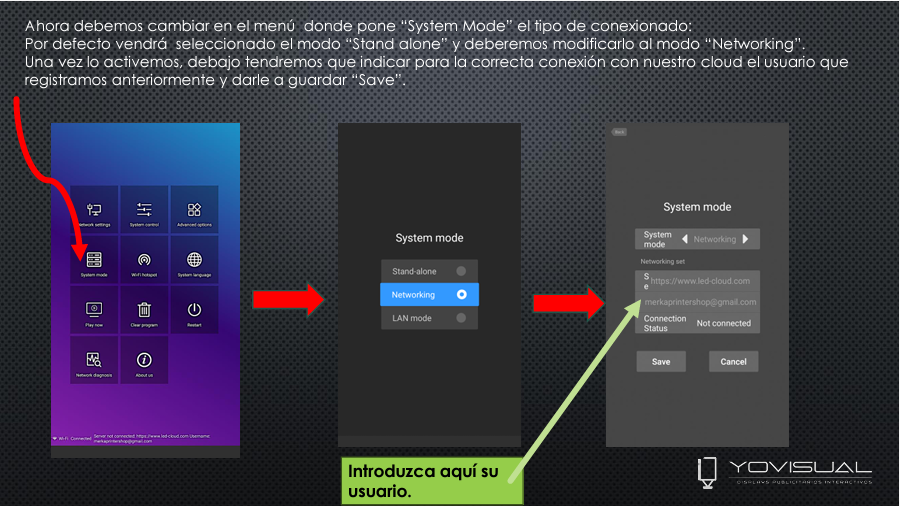
Visual reference of the process that gets the screen ready to communicate with the LED‑Cloud account.
Keep both documents separate: one is designed to get you started with the workflow and the other goes into the system's modules and options in depth.
Registration, device connection, content, programmes, editor, tasks, settings and statistics.
Open basic manual →A comprehensive guide to devices, programmes, materials, roles, settings and other platform functions.
Open technical manual →LED‑Cloud is designed for remote management over the internet with a centralised account; LedArt works from an app connected to the compatible controller.
A web dashboard for managing devices, groups, content, programmes, tasks, users and statistics over the internet.
A mobile app for creating and sending content directly to a compatible controller via a local or network connection.
A summary of common questions about access, units, content, users and network operation.
It is a cloud-based web platform for managing compatible digital signage content and devices. It lets you work from anywhere with internet access using a user account.
Day-to-day management is done from a web interface accessible through a browser. The unit must be correctly configured and connected to the internet to communicate with the platform.
Yes. According to Yovisual's documentation, you can select devices individually or by group, and organise units into subgroups to simplify administration.
The getting-started manual covers images, videos, music and documents in the content module. Material must be uploaded first so it can then be used in programmes.
Yes. The platform supports sub-users and role management, so responsibilities can be shared between different people or groups of devices.
Yes. The tasks and statistics modules let you review history, publications, number of runs and playback duration by programme or device.
To use the cloud, Yovisual's manual states that compatible units must be set to “Networking” mode and linked to the user registered on LED‑Cloud.
Compatibility depends on the hardware and configuration installed on each unit. Before changing any settings, you can contact Yovisual support to confirm the correct procedure.